October 8, 2026 · 3 min read
Send your COD orders to Google Sheets automatically
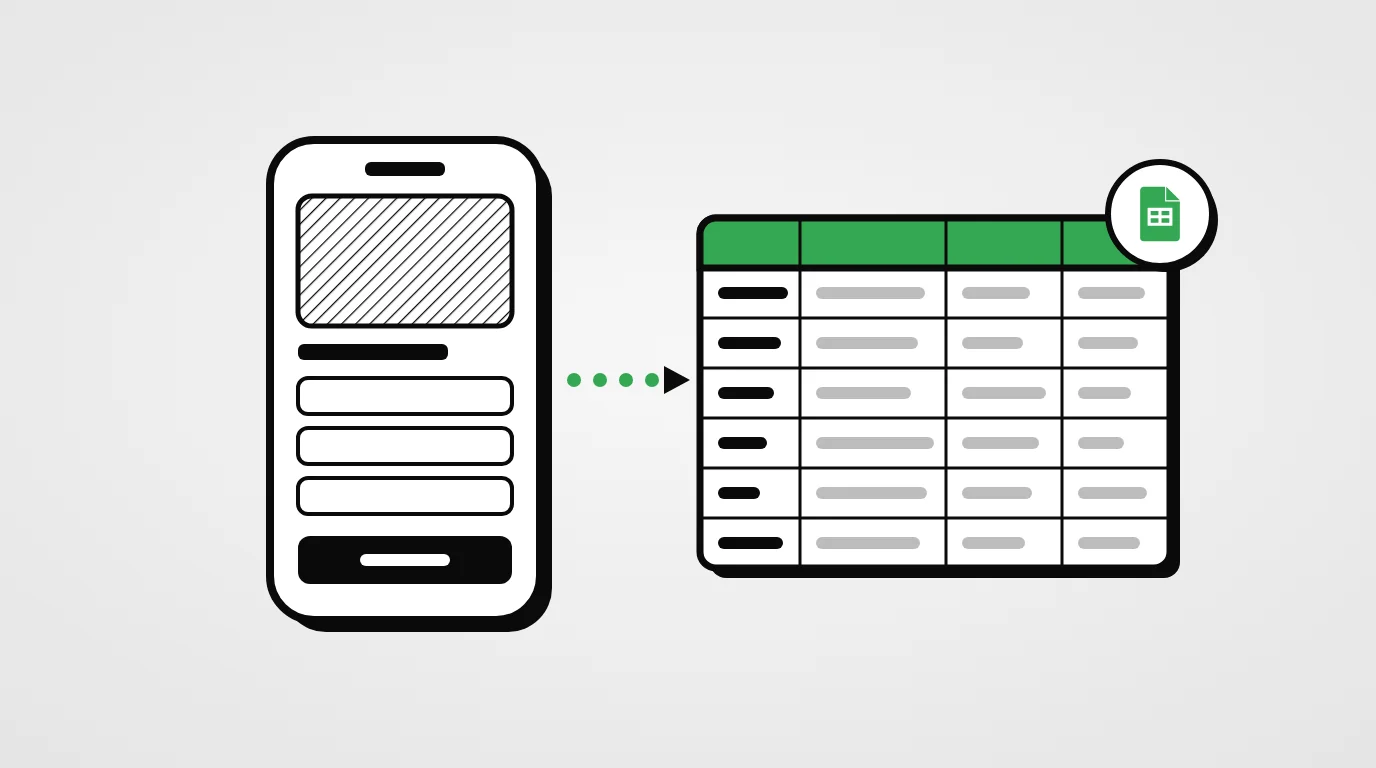
Export orders and abandoned checkouts to the sheet you choose, with your own columns — and four ways to use it.

Kllix team
Product & growth
Why merchants still love spreadsheets
Your dashboard is where orders are managed. But many COD teams still need a spreadsheet next to it: a call list for the confirmation team, a daily report for a partner, a file for the accountant or a custom view of one campaign.
Copying orders by hand is slow and full of mistakes. The Google Sheets integration writes every new order into the sheet you choose, the moment it arrives.
What gets exported
- Orders — every new order, with the customer, products, totals and status.
- Abandoned checkouts — customers who typed their phone but did not submit, ready for your call team.
- Your columns — choose the fields, rename them and set their order.
- Multi-product orders — written cleanly on a single row.
- Per store or landing page — one sheet per campaign if you want.
| Date | Name | Phone | Wilaya | Products | Total |
|---|---|---|---|---|---|
| 25/10 10:42 | Sara B. | 0555 12 34 56 | Oran | Ambre perfume ×2 | 5,200 DA |
| 25/10 10:58 | Karim M. | 0661 98 76 54 | Sétif | Siena Tote | 4,200 DA |
Set it up in four steps
- 01
Connect a Google account
Authorize Kllix with Google. You can connect several accounts and disconnect at any time.
- 02
Pick or create a sheet
Choose an existing spreadsheet and tab, or create a new one directly from Kllix.
- 03
Choose your columns
Tick the fields you need — customer, phone, wilaya, products, totals, status — and arrange them.
- 04
Choose the sources
Select which stores and landing pages feed this sheet. New orders now arrive automatically.
Kllix tip
Need the latest orders right now? Use “Sync now” to push them immediately.
Orders in your sheet, instantly
Connect Google Sheets and export every new order automatically.
Four ways to use your sheet
- Call list — add a “Result” column to the right where agents note “confirmed”, “no answer” or “cancelled”.
- Daily report — a pivot table of orders per product and per wilaya, updated by itself.
- Campaign tracking — one sheet per landing page to compare your ads side by side.
- Sharing with a partner — give a supplier or associate a view of the orders without giving access to your dashboard.
Good practices
Watch out
Do not rename or reorder the columns Kllix writes directly in Google Sheets. Change them from Kllix, and add your own columns to the right of the exported ones.
- Keep one tab for raw data and build your reports in other tabs.
- Share the sheet only with people who need it — it contains your customers’ personal data.
- Use “view only” access for partners.
Privacy and security
Kllix only accesses the spreadsheets you select or create through Kllix, and only to list them and write your order rows. Access tokens are encrypted, never shared and never used for advertising. Disconnect your Google account from Kllix whenever you want, and access stops immediately.
Your Google Sheets setup
- Google account connected
- Sheet and tab selected
- Columns chosen and ordered
- Stores and landing pages selected
- Your own columns added on the right
- Sharing limited to the right people